Export
Exporting Church Windows reports involves saving the contents of a report to a file to be used outside of Church Windows. Through the program, you can save the file to a location on the hard drive, network location, or removable media. If you have an email client application that successfully sends and receives emails installed on the same computer (such as Microsoft Outlook), you can use the Send via Email option to send the saved file as an attachment in an email.
Note:
Keep in mind, Send via Email is NOT the same as "Send Email" to the people in your Church Windows database.
The reports in Church Windows can be exported from the final window of nearly any Report Options screen accessed from the Reports / Export menus of each Module. 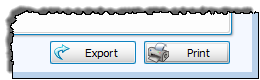
Clicking the Export button brings you to a screen where you can choose to save the report contents to a file (A), or send the report contents in an attached file by email (B). Both options involve transferring the report contents to a file. To send a report via email, your computer must have a properly configured email client that successfully sends and receives email independently of Church Windows (such as Microsoft Outlook). 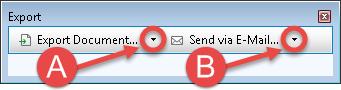
Depending on the option you choose, click the desired  arrow button circled in the image above to reveal a list of file formats:
-
 Export Document
If you chose this option, you will get a dropdown to select the file type for your export. Click the desired format from the list that appears:

- A screen specific to the format you chose will show you additional options you can apply to the file.
- Click OK and a window will prompt you to save the file to a location.
- Specify the location to save your file and click the Save button.
- A final screen will appear asking you if you wish to open the file you saved.
-
Send via Email
If you chose this option, you will get a dropdown to select the file type to attach to your email. Click the desired format from the list that appears:
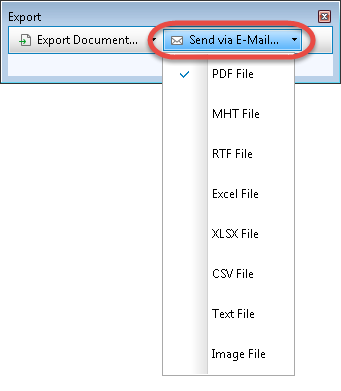
- A screen specific to the format you chose will show you additional options you can apply to the file (changes here are rarely necessary).
- Click OK and a window will prompt you to save the file to a location.
- Specify the location to save your file and click the Save button.
- Finally, a screen will show you a new email message with the file already attached.
A very important note about compatibility:
Church Windows will attempt to open your default email client when you choose the email feature. This should work with most mail programs; however, there are many different email programs available. Some variation in functionality may occur. Please check your email program’s documentation for information. Church Windows will work with most MAPI-compliant email clients. Remember, this is a different procedure than Send Email to the people in your Church Windows database.
